
Ergonomic Desk Setup – Equipment and Guidelines
Long office hours are often necessary for freelance professionals. This is exactly why so many of us have chronic headaches, cracking wrists, tingling fingers, and stiff necks. All of these symptoms can be avoided by designing your home office with ergonomics on your mind. This article will summarize the basics of home office ergonomic design.
CHAIR
Your chair is the most important piece of furniture in your office. You want to find a comfortable ergonomic chair that has the following characteristics.
- Adjustable height
- Lower, raise, and tilt backwards
- 16″ to 20″ off of the floor
- Lumbar support
- Good backrest and wide enough to support shoulders
- Chair’s seat should allow 1″-4″ of space between edge of chair and your knees
- Front edge of seat is curved
- 5 wheels
- Padded armrests that can lower or raise
Before you purchase your chair, make sure to give it a test drive. If possible, move the chair that you like in front of a desk and see how it feels. Adjust the seat so that your feet are flat on the floor. When you do this the lumbar support should fit into the small of your back. If the chair fits your body and meets our guidelines, purchase the chair. A good ergonomic chair will cost anywhere from $400 – $2,000.
DESK
Before purchasing an ergonomic desk, evaluate your needs. What is your profession? What equipment will you be using? How much desktop room will you need? Make sure to allow space for computer equipment, telephone, Rolodex, other office supplies, and writing room. Make sure that you will have room for heavily used items on your desk, or you might have to constantly stretch, twist, and turn to reach items that you need. Height-adjustable large tables are found to have cost-effective benefits. These tables let you move from keyboard to side table without having to hunch your shoulders.
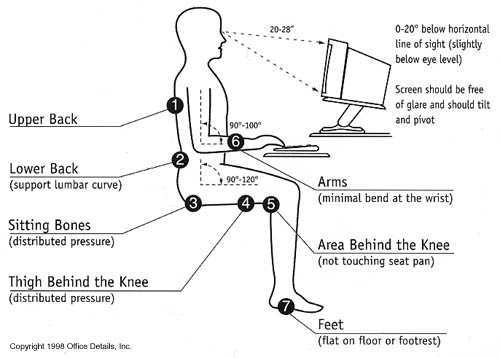
Setup for Correct Posture
KEYBOARD / MOUSE TRAY
Since it is so important to have your wrists at the right height when using input devices, a tray system is important to consider as an option. Choose a keyboard tray that has the following features:
- Height adjustable
- Adjustable angle
- Allows for upper arm relaxation by right angle position of arms.
You should place your keyboard 28″-30″ off of the floor. If your keyboard is too low you will slump over your keyboard, and if it is too high you will strain your wrists. You should also purchase a wrist pad for in front of your keyboard to cushion your wrists.
MOUSE
The use of a mouse causes injuries to many people. The mouse often causes twisting of the hand into uncomfortable positions, which causes wrist injuries.
Additionally try to use the mouse with a sweeping movement, instead of a quick, twisting motion. Use your mouse as little as possible, but if you find that you can’t do this, consider purchasing a trackball instead. Trackballs are good because you can program a lock button so you don’t have to click and drag.
KEYBOARD
Split-and-Tilt keyboards tend to be better for your health than flat keyboards that most people use. A good keyboard will not flatten your hands and bend your wrists.
LIGHTING
Good lighting in your home office is important to reduce eyestrain. Here are some ergonomic lighting suggestions:
- Make sure lighting isn’t too bright.
- Avoid white reflective furniture.
- If you are using a desk lamp, choose a low wattage light bulb. Direct light toward papers, not eyes.
- Use blinds or drapes to eliminate outdoors light.
- Avoid bright lighting on your monitor.
MONITOR
It is important to position the computer monitor correctly to ensure your good health.
- Position monitor to minimize glare.
- Adjust monitor so that the screen is slightly below eye level.
- Clean screen on a regular basis.
- Position yourself about 20″-24″ away from the monitor.
- Center your monitor on the user.
- Keep your head at a comfortable level.
GOOD POSTURE
Ergonomic equipment will do nothing for you if you don’t assume correct posture. Make sure of the following:
- Relax shoulders
- Wrists straight
- Back in contact with lumbar support of your chair
- Legs in contact with your seat
- Feet on the floor
- Elbows at a right angle when typing
- Upper arm and elbow close to body
- Head and neck straight
Now that you know your ergonomic basics, use this knowledge to your advantage. Position yourself and your equipment correctly to ensure a quality-working environment. Healthy working to you!